提醒通知
在 DeskFlux 中,您可以设置提醒通知,系统将根据您设定的时间规则,在指定时间点自动触发提醒,并将通知内容发送至预设的接收端,此功能仅用于发送提醒,不会执行任何工作流。
核心功能特性
- 多规则支持:支持添加多条独立的提醒规则。
- 灵活周期:提供每日、每周、每月及单次指定时间等多种重复模式。
- 精确:设置具体的提醒时间点(时、分)。
- 通知推送:提醒触发后,预设的通知内容将自动发送至您设置的默认接收端(如飞书、微信等Webhook通知,需单独配置)。
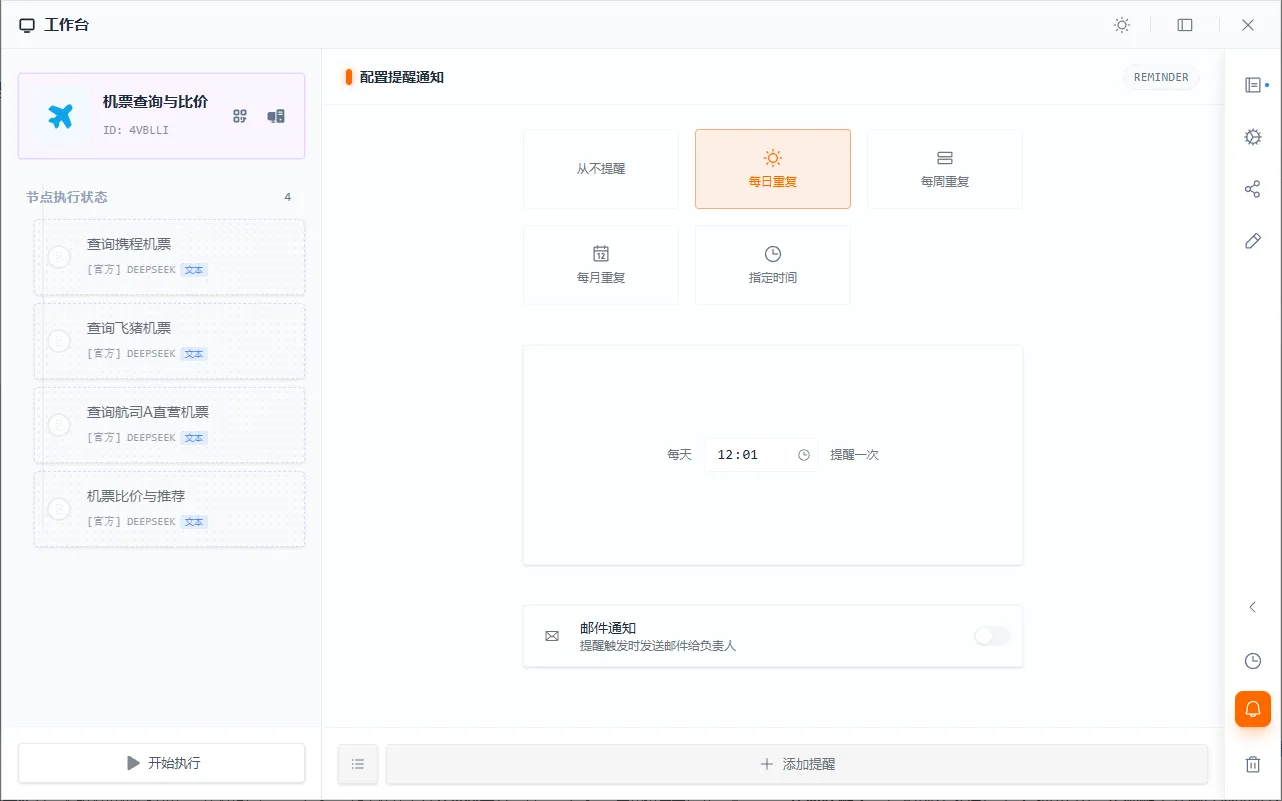
配置步骤
1. 进入提醒通知设置
在 DeskFlux 主界面,点击工作流到工作流的执行界面,在右下角找到 提醒通知” 图标。
2. 创建新提醒
- 在弹出的配置窗口中,设置以下参数:
- 重复模式:从下拉列表中选择
每日、每周、每月或指定时间。 - 触发时间:
- 对于周期模式(日/周/月),设置具体的小时和分钟。
- 对于“每周”模式,需额外勾选星期几。
- 对于“每月”模式,需指定每月的哪一天。
- 对于“指定时间”,需选择未来的一个具体日期与时间。
- 重复模式:从下拉列表中选择
- 点击 “添加提醒”,即可在列表中看到新创建的提醒。
您可以重复上述步骤,多个不同时间规则的提醒通知。
通知流程
graph TD
    subgraph S1 ["⏰ 提醒配置与触发"]
        direction TB
        A["📋 用户创建提醒通知<br>(时间规则/通知内容)"] --> B["💾 提醒保存并启用"]
        B --> C{"⏲️ 到达预定时间?"}
        C -->|"✅ 是"| D["📤 DeskFlux 后台引擎<br>发送通知"]
        C -->|"❌ 否"| I["⏳ 等待下一次<br>时间检查"]
        I --> C
    end

    subgraph S2 ["📨 通知发送与接收"]
        direction TB
        D --> E["📝 封装预设的<br>通知内容"]
        E --> F["🚀 将通知推送至<br>用户预设的默认接收端"]
        F --> G["📧 用户在接收端<br>(如聊天软件)查收提醒"]
    end

    G --> H["✅ 提醒完成"]
    H --> J["📋 记录至通知历史"]

    style S1 fill:#e3f2fd,stroke:#1976d2,stroke-width:2px
    style S2 fill:#e8f5e9,stroke:#43a047,stroke-width:2px

    style A fill:#bbdefb,stroke:#1976d2,stroke-width:1.5px
    style B fill:#90caf9,stroke:#1976d2,stroke-width:1.5px
    style C fill:#fff8e1,stroke:#f57c00,stroke-width:2px
    style D fill:#e1bee7,stroke:#8e24aa,stroke-width:2px
    style I fill:#ffe0b2,stroke:#f57c00,stroke-width:1.5px

    style E fill:#c8e6c9,stroke:#43a047,stroke-width:1.5px
    style F fill:#a5d6a7,stroke:#43a047,stroke-width:1.5px
    style G fill:#66bb6a,stroke:#43a047,stroke-width:2px,color:#ffffff

    style H fill:#a5d6a7,stroke:#388e3c,stroke-width:2px
    style J fill:#e0e0e0,stroke:#757575,stroke-width:1.5px
重要提醒
- 接收端配置:请提前在系统设置”>“通知”中,正确配置并测试您的默认接收端,以确保能成功接收到提醒。
- 提醒管理:对于需要停止的提醒,可以在提醒通知列表中,随时点击对应提醒“删除”按钮进行操作。